
Logbot Node#
The Logbot node uses Gravwell’s AI-powered Logbot service to analyze, explain, or summarize log data and text. It sends input text to an AI agent and returns the AI-generated response in a configurable output variable.

Note
This node requires the Logbot/AI API service to be enabled on your Gravwell instance. The node uses network access to communicate with the Logbot service.
Configuration#
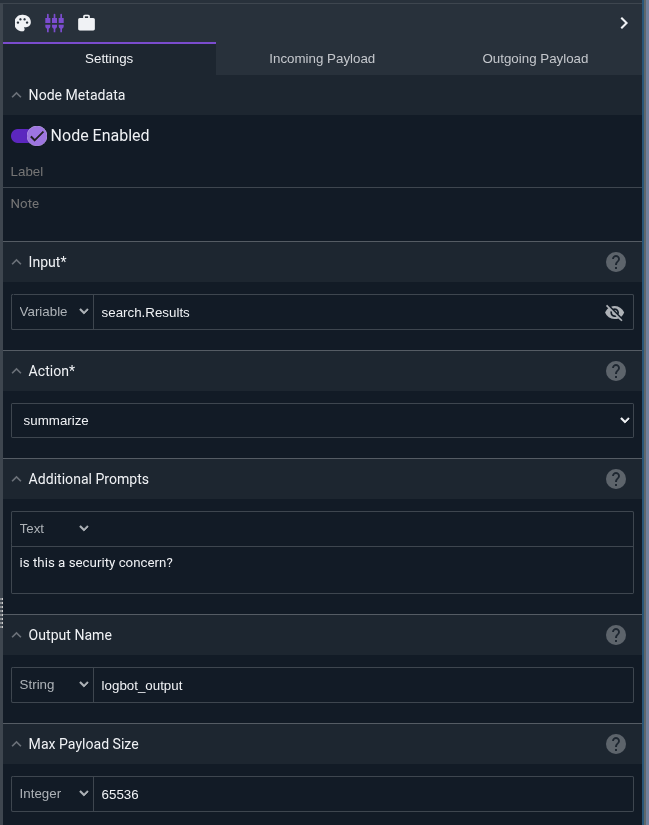
Agent: The AI agent to run (default:logbot, the built-in assistant). Any other value must name an agent the user running the flow can access; the node validates the name before sending the request.Input, required: The text or log data to send to the agent. This can be a static string or a variable from the payload (such as search results, formatted text, or raw log entries). When the agent’s own prompt already says what to do, the default input (execute using the instructions in the agent system prompt) is enough.Action, required: The type of analysis to perform. Must be one of:explain- Analyzes and explains the individual components of log entries and provides context about what each part representssummarize- Extracts and summarizes the most important information from log entries into a condensed formcustom- Allows you to provide your own custom prompt without predefined instructions
Additional Prompts: Optional extra instructions to include with your request. This allows you to refine or customize the analysis (e.g., “Focus on security-related events” or “Identify anomalies”).Output Name: The name of the variable where the response will be stored in the payload (default:logbot_output).Max Payload Size: Maximum input size in bytes (default: 65536). If the input exceeds this size, it will be truncated and a warning will be logged.
Output#
The node sets a variable in the payload (named logbot_output by default, or as specified in the Output Name configuration) containing the Logbot response text.
The node does not modify other payload values.

Action Types#
The explain action analyzes log entries and provides detailed explanations of each component:
Use this action when you need to:
Understand the structure of unfamiliar log formats
Document what different log fields represent
Learn about a new system’s logging patterns
The summarize action condenses log entries into a shorter, more digestible form:
Use this action when you need to:
Create executive summaries of log events
Reduce verbose log output to key points
Generate concise reports from detailed logs
The custom action allows you to provide your own prompting without any predefined system prompt. Use the Additional Prompts field to specify exactly what you want Logbot to do with the input.
Use this action when you need to:
Perform specialized analysis not covered by explain/summarize
Apply domain-specific knowledge to log analysis
Create custom workflows with specific instructions
Error Handling#
The Logbot node is designed to be resilient and will not cause flows to fail even if the Logbot API encounters errors. Instead:
Any errors are captured and placed in the output variable
Errors are logged for debugging purposes
The flow continues executing downstream nodes
This ensures that temporary API issues don’t break your automation workflows.
Input Payload Size#
The Max Payload Size setting limits how much data is sent to the Logbot API:
Default: 65536 bytes (64 KB)
If input exceeds this limit, it is automatically truncated
A warning is logged when truncation occurs
You can increase this value if you need to analyze larger log sets
Be aware that very large inputs may take longer to process and could hit API rate limits.
Example: Examining some failed Gravwell Login Attempts#
This example retrieves Apache access logs from Gravwell, formats them as text, and uses Logbot to explain the log format.
The flow consists of three nodes:
Run a Query node executes a Gravwell query:
tag=gravwell syslog MsgID ~ webserver/login.go Message != "Refreshed JWT token"
| syslog -s Appname==webserver host user Message
This retrieves login activity that is not basic JWT refreshes.
If node checks if there are results using
search.Count > 0logic.Logbot node is configured as shown below.
The Logbot node configuration:
Input: References the formatted text output from the Text Template node
Action: Set to
summarizeto get summery of what happenedAdditional Prompts: “is this a security concern?”
Output Name: Uses the default
logbot_output
When executed, Logbot analyzes the gravwell logs and produces a summary and analysis of the login attempts, including whether there are any security concerns. The output is stored in the logbot_output variable and can be used by downstream nodes for further processing or notifications.
Example: Custom Analysis#
Using the custom action with custom prompting:
Logbot node:
Input: Raw log data from a custom application
Action:
customAdditional Prompts:
Analyze these application logs and identify any performance issues,
errors, or anomalies. Categorize findings by severity (critical, warning, info).
Provide specific line numbers or timestamps for critical issues.
This gives you complete control over how Logbot processes the input.
Integration with Other Nodes#
The Logbot output can be used by downstream nodes:
Email/Slack/Teams: Send AI-generated summaries and explanations to team members
Ingest: Re-ingest Logbot analysis as enriched log data
PDF: Include AI analysis in automated reports
If: Make decisions based on keywords in Logbot output
Text Template: Format Logbot output into custom report templates
Tip
Combine Logbot with the Text Template node to format raw query results before analysis. This helps Logbot understand the data better and produces more accurate results.
Warning
Logbot requires network access and the AI API service. Ensure your flow is configured to allow network operations and that your Gravwell instance has Logbot enabled.