
Microsoft Entra ID#
Integration Details |
|
Ingester |
|
Preprocessor |
|
Kit |
Microsoft Entra ID Configuration#
Entra ID (formerly Azure AD) sign-in and directory audit logs are exported the same way as the rest of Azure Monitor data: Diagnostic Settings stream them to an Azure Event Hub, where the Azure Event Hubs ingester picks them up.
Microsoft provides documentation on how to set up the export:
If you do not already have an Event Hub for these logs, create one following Microsoft’s documentation above. If you already stream other Azure data to an Event Hub, see the Azure integration guide; Entra logs can share the same Event Hubs Namespace.
In order to consume events you will need the following pieces of information:
The name of the Namespace in which the Event Hub exists.
The name of the Event Hub itself.
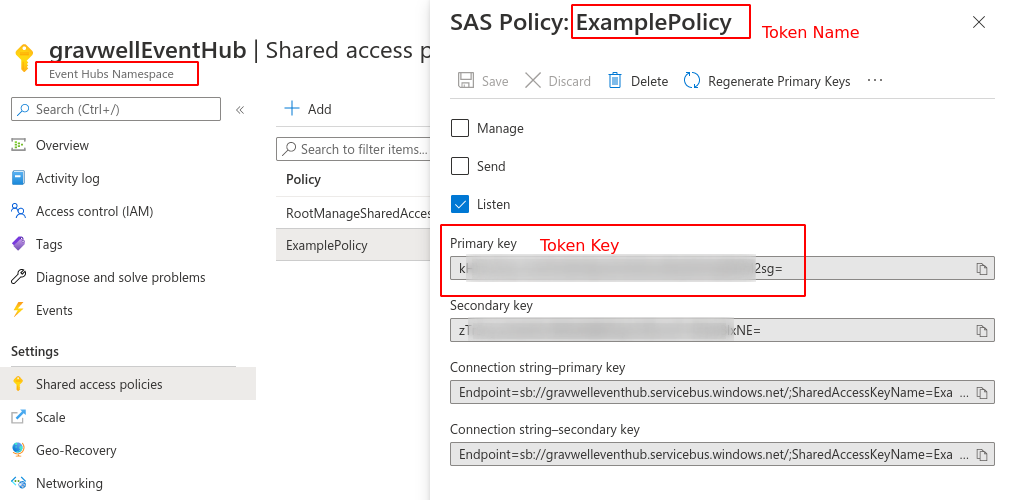
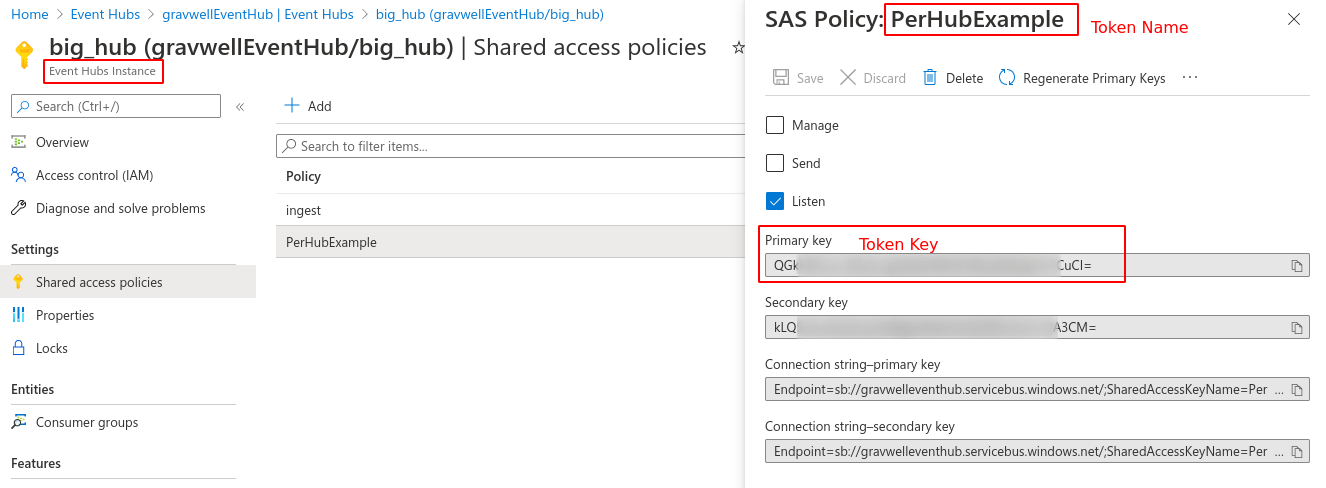
The name of the Shared Access Policy token to use for authentication.
The primary key of the Shared Access Policy token to use for authentication.
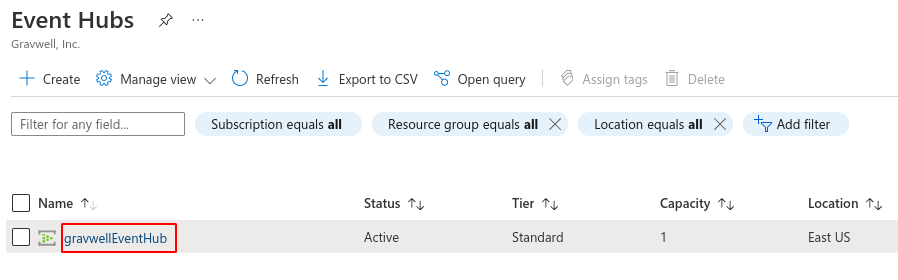
The Event Hubs Namespace is a grouping which contains your Event Hubs. When the Event Hubs page is first opened within the Azure portal, the names listed are Namespaces; in the screenshot below, there is a single Namespace named “gravwellEventHub”:
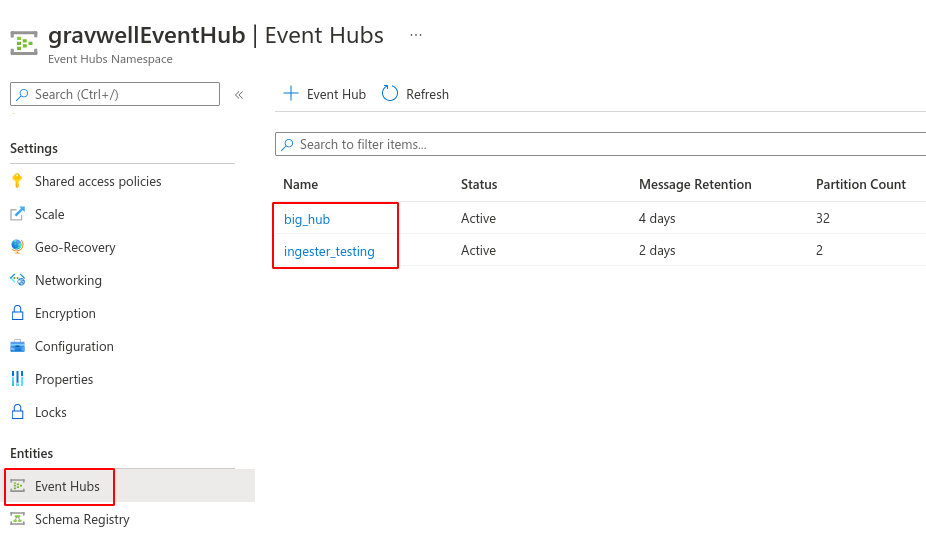
Selecting the Namespace, you may then select the “Event Hubs” option to see a list of Event Hub names; in the screenshot below, there are two hubs named “big_hub” and “ingester_testing”:
The Shared Access Policy token is used to authenticate with Azure. Each token has a name and a key. Tokens may be defined at the Namespace level, giving access to all Event Hubs in the Namespace:
Or a token may be defined for a single Event Hub:
Streaming Entra ID Logs to the Event Hub#
After creating the Event Hubs, you will need to configure Entra ID to send logs to them. Create two diagnostic settings, one for directory audit logs and one for sign-in logs, each streaming to its own Event Hub:
In the Microsoft Entra admin center, go to Entra ID > Monitoring & health > Diagnostic settings. You can also reach this from the Export Settings button on the Audit logs or Sign-in logs pages.
Select Add diagnostic setting, and name it for the audit logs (for example,
gravwell-audit).Select the audit log category:
AuditLogs: Directory operations such as user, group, app, and service principal management, role assignments, and conditional access policy changes.
Select Stream to an event hub, then choose the Namespace and the Event Hub for audit logs.
Save.
Select Add diagnostic setting again, and name it for the sign-in logs (for example,
gravwell-signin).Select the sign-in log categories:
SignInLogs: Interactive user sign-ins.
NonInteractiveUserSignInLogs: Non-interactive and batch sign-ins.
ServicePrincipalSignInLogs: Service principal sign-ins.
ManagedIdentitySignInLogs: Managed identity sign-ins.
Select Stream to an event hub, then choose the Namespace and the separate Event Hub for sign-in logs.
Save.
The Azure kit’s Entra ID Audit and Entra ID Sign-in views use these categories, so select all five if you plan to use the kit.
Gravwell Configuration#
Gravwell Storage Well Configuration#
Set up the well configuration in your Gravwell indexers.
Note
The ingester configuration below uses the azure-ad and azure-signin tags, which are the same tags used in the Azure integration guide and read by the Azure Kit. If you have already created the Azure well (Tags=azure*), these tags are already covered and you can skip this step. If you create the well below anyway, Gravwell assigns these two tags to it instead of the Azure well, because a well that names a tag directly takes precedence over one that matches it with a wildcard.
Sample well config:
Create or edit: /opt/gravwell/etc/gravwell.conf.d/entra-well.conf
[Storage-Well "entra"]
    Location=/opt/gravwell/storage/entra
    Tags=azure-ad
    Tags=azure-signin
Gravwell Ingester Configuration: Event Hub#
Each raw Event Hub message wraps many log records in a single records array, which makes field extraction cumbersome. The JSON Array Split preprocessor splits that array into one event per record, so important fields are available as top-level enumerated values.
Install the Azure Event Hubs ingester by following the instructions in Azure Event Hubs Ingester. Then add the following configuration, using one EventHub block for each Event Hub that receives Entra logs. Send the audit and sign-in categories to separate Event Hubs (one diagnostic setting for each), so each EventHub block can apply its own tag.
Sample Entra ID config:
Create or edit: /opt/gravwell/etc/azure_event_hubs.conf.d/entra.conf
[Preprocessor "entra-records"]
    Type=jsonarraysplit
    Extraction=records

[EventHub "entra-auditlogs"]
    Event-Hubs-Namespace=<your event hub namespace>
    Event-Hub=<your event hub for Entra ID audit logs>
    Token-Name=XXXX
    Token-Key=XXXXX
    Initial-Checkpoint="start"
    Tag-Name=azure-ad
    Parse-Time=false
    Assume-Local-Timezone=true
    Preprocessor=entra-records

[EventHub "entra-signin"]
    Event-Hubs-Namespace=<your event hub namespace>
    Event-Hub=<your event hub for Entra ID sign-in logs>
    Token-Name=XXXX
    Token-Key=XXXXX
    Initial-Checkpoint="start"
    Tag-Name=azure-signin
    Parse-Time=false
    Assume-Local-Timezone=true
    Preprocessor=entra-records
Note
Remember to restart the service to apply the new config:
sudo systemctl restart gravwell_azure_event_hubs_ingest.service