
Azure#
Integration Details |
|
Ingester |
|
Kit |
Azure Configuration#
Microsoft provides documentation on how to setup logging to an external partner:
If you do not already have an Event Hub with these logs, you can create a new Event Hub following Microsoft’s documentation above.
In order to consume events you will need the following pieces of information:
The name of the Namespace in which the Event Hub exists.
The name of the Event Hub itself.
The name of the Shared Access Policy token to use for authentication.
The primary key of the Shared Access Policy token to use for authentication.
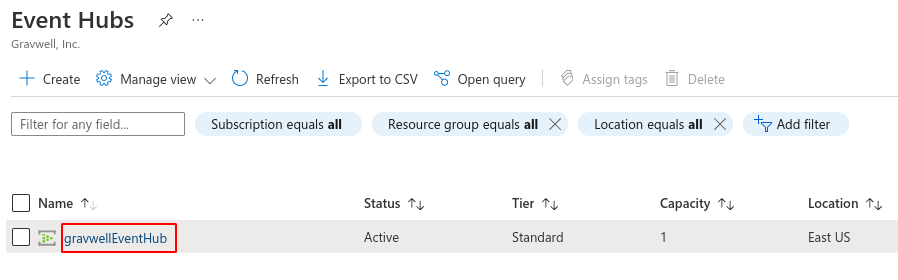
The Event Hubs Namespace is a grouping which contains your Event Hubs. When the Event Hubs page is first opened within the Azure portal, the names listed are Namespaces; in the screenshot below, there is a single Namespace named “gravwellEventHub”:
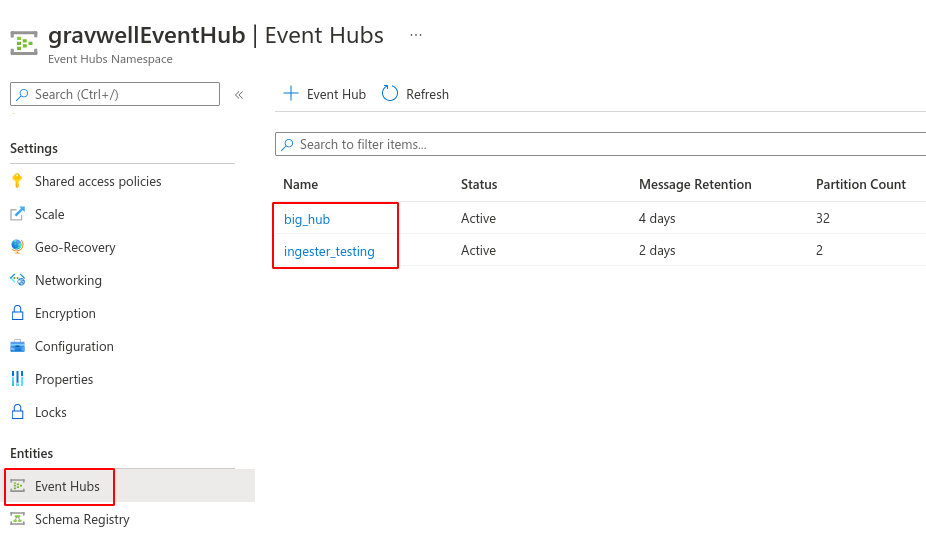
Selecting the Namespace, you may then select the “Event Hubs” option to see a list of Event Hub names; in the screenshot below, there are two hubs named “big_hub” and “ingester_testing”:
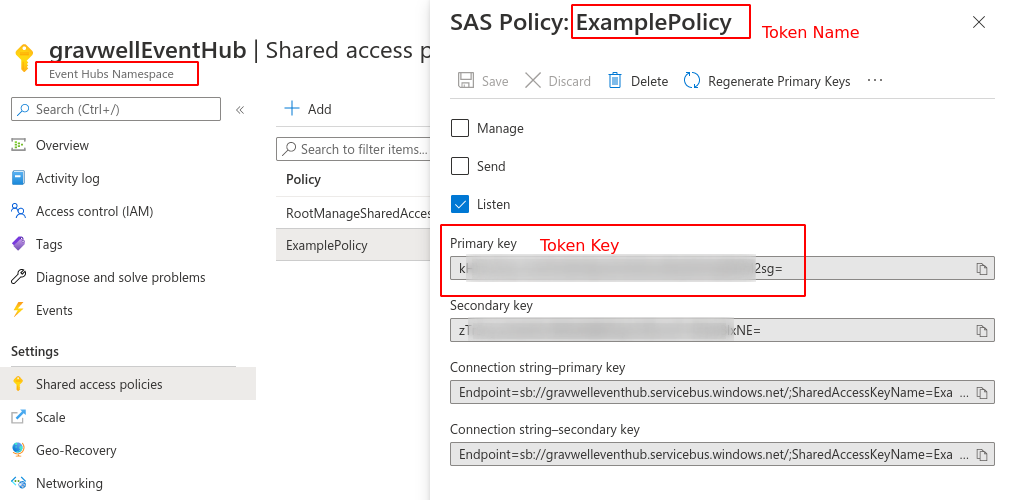
The Shared Access Policy token is used to authenticate with Azure. Each token has a name and a key. Tokens may be defined at the Namespace level, giving access to all Event Hubs in the Namespace:
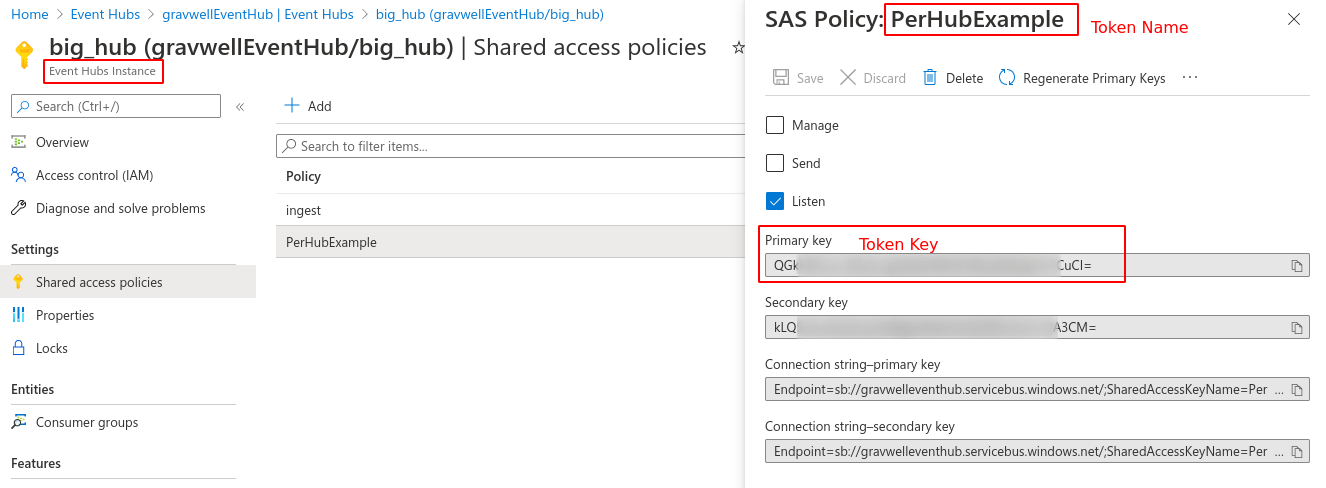
Or a token may be defined for a single Event Hub:
After creating an Event Hub you will need to configure Azure to send logs by following the documentation above.
Azure Portal > Activity Log > Diagnostics Settings.
Select Diagnostics settings and create a new setting.
Select the events to log.
The Azure kit monitors three log planes for relevant events:
Activity Log: ARM control-plane operations: resource creates/deletes, RBAC assignments, Policy evaluations, subscription-level administrative actions.
Entra ID Audit: Directory operations: user/group/app/SP management, role assignments, conditional access policy changes.
Entra ID Sign-in: Authentication events: interactive sign-ins, non-interactive/batch sign-ins, service principal sign-ins, managed identity sign-ins.
Select the Event Hub created above.
Save.
Gravwell Configuration#
Gravwell Storage Well Configuration#
Setup the well configuration in your Gravwell indexers.
Sample well config:
Create or edit: /opt/gravwell/etc/gravwell.conf.d/azure-well.conf
[Storage-Well "azure"]
    Location=/opt/gravwell/storage/azure
    Tags=azure*
Gravwell Ingester Configuration: Event Hub#
Raw Event Hub JSON records come with multiple records arrays per message which makes EV extraction cumbersome. With a preprocessor, you can split the JSON records into separate events with important fields available as top-level EVs.
Sample Azure config:
Create or edit: /opt/gravwell/etc/azure_event_hubs.conf.d/azure.conf
[Preprocessor "azure-records"]
    Type=jsonarraysplit
    Extraction=records

[EventHub "subscription"]
    Event-Hubs-Namespace=<your event hub namespace>
    Event-Hub=<your event hub for subscription/resource level logs>
    Token-Name=XXXX
    Token-Key=XXXXX
    Initial-Checkpoint="start"
    Tag-Name=azure-activity
    Parse-Time=false
    Assume-Local-Timezone=true
    Preprocessor=azure-records

[EventHub "auditlogs"]
    Event-Hubs-Namespace=<your event hub namespace>
    Event-Hub=<your event hub for azure ad logs>
    Token-Name=XXXX
    Token-Key=XXXXX
    Initial-Checkpoint="start"
    Tag-Name=azure-ad
    Parse-Time=false
    Assume-Local-Timezone=true
    Preprocessor=azure-records

[EventHub "signin"]
    Event-Hubs-Namespace=<your event hub namespace>
    Event-Hub=<your event hub for signin logs>
    Token-Name=XXXX
    Token-Key=XXXXX
    Initial-Checkpoint="start"
    Tag-Name=azure-signin
    Parse-Time=false
    Assume-Local-Timezone=true
    Preprocessor=azure-records
Note
Remember to restart the service to apply the new config:
sudo systemctl restart gravwell_azure_event_hubs.service