
Bitwarden#
Integration Details |
|
Kit |
Additional Resources#
Bitwarden’s public API gives developers programmatic access to organizational data (items, folders, collections, etc.) using a RESTful interface that mirrors the functionality of the desktop and web clients.
Bitwarden Configuration#
Obtain organization API key
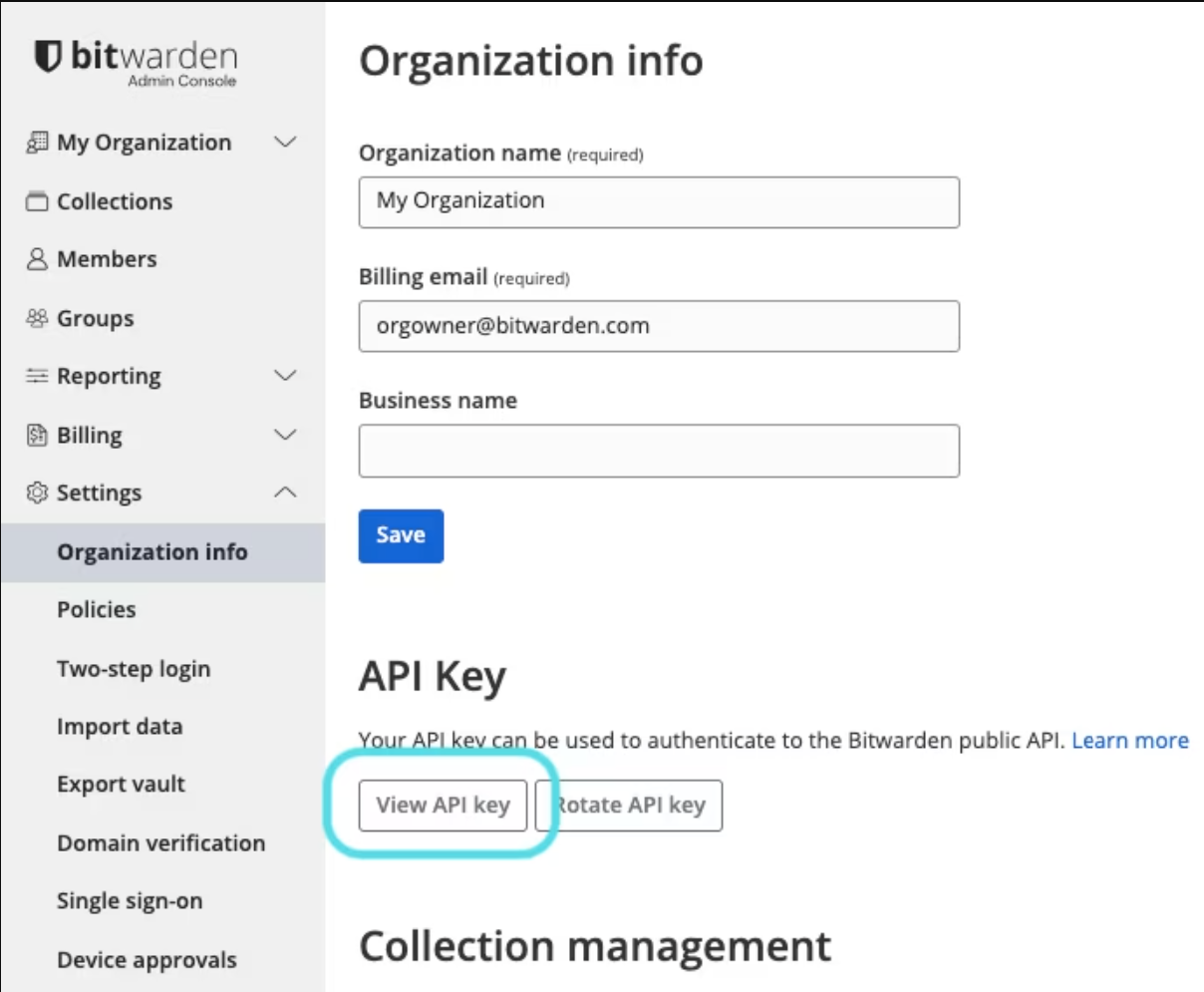
To view the API key, log into the Bitwarden admin console as an owner and navigate to Settings > Organization info.
To check that you have an organization key, check that it begins with “organization”; if it does not, you have a user API key.
Gravwell Configuration#
Gravwell uses its scripting interface (in the Bitwarden Kit) to request data from the Bitwarden API.
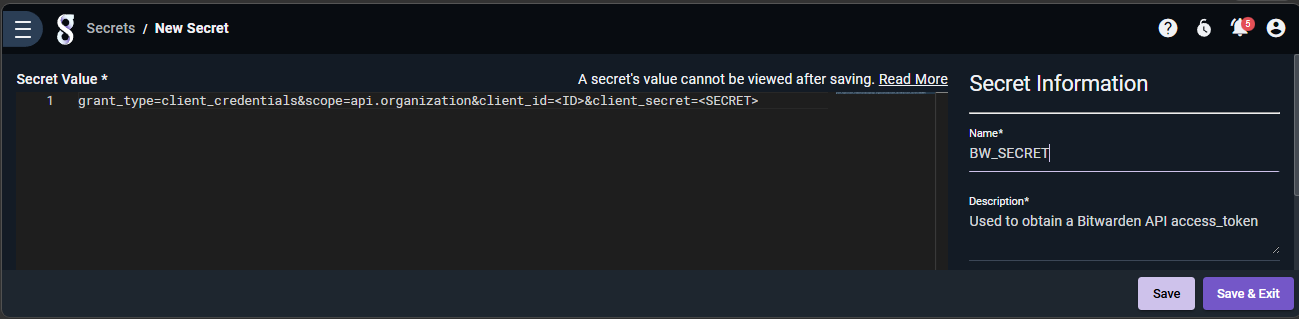
Create a Gravwell secret named “BW_SECRET”
The secret value should be formatted as shown in the image to properly obtain an access_token. Make sure to replace the
<ID>and<SECRET>with the correct values:
grant_type=client_credentials&scope=api.organization&client_id=<ID>&client_secret=<SECRET>
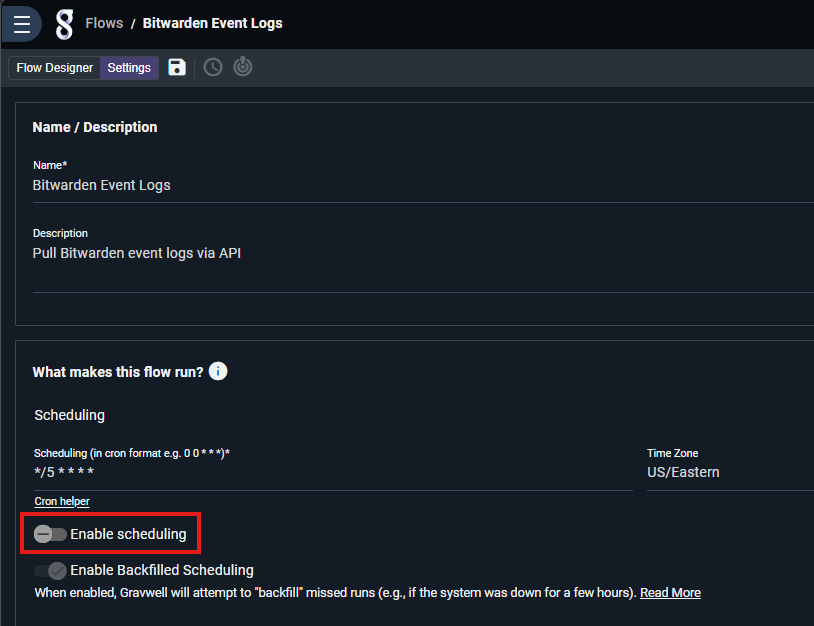
Enable the “Bitwarden Event Logs” flow
Once the secret has been created and a well configured, you’re ready to start collecting Bitwarden Event Logs by enabling the flow.
Status Codes#
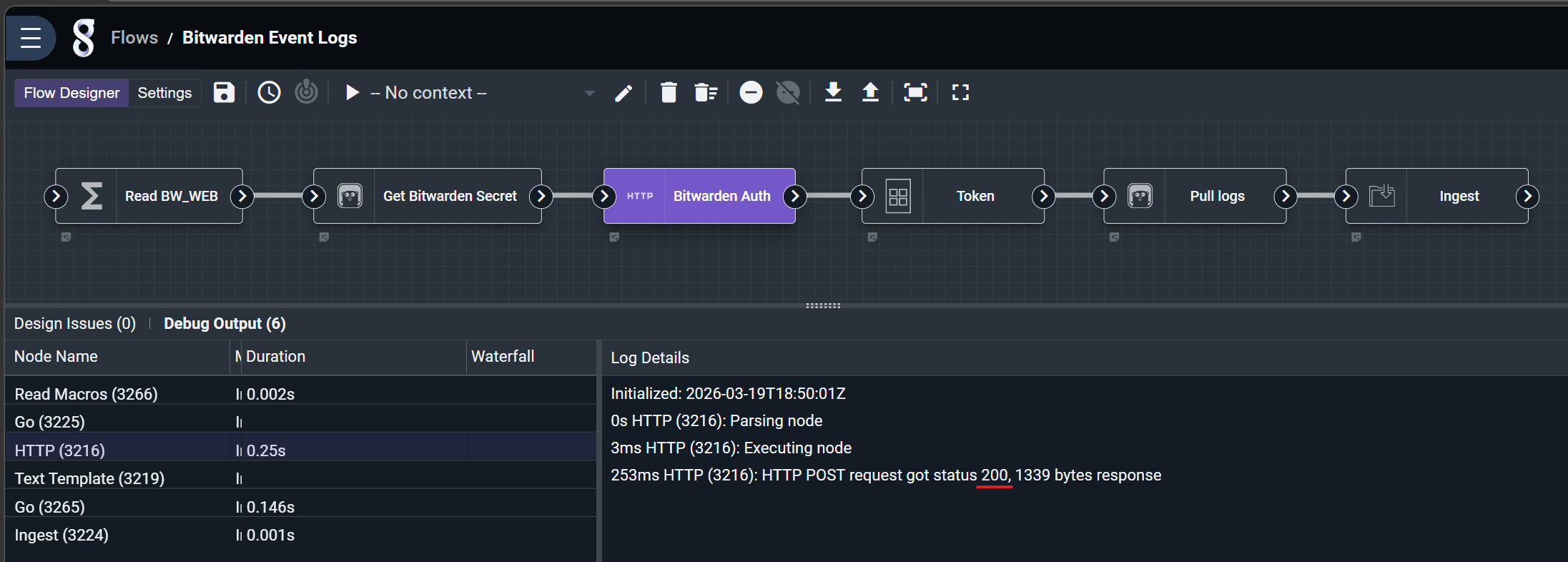
200 (OK) - Authentication is completing normally. Start exploring your Bitwarden event logs and org data.
400 (Bad Request) - Potentially missing or malformed parameters. Check connection.
401 (Unauthorized) - Token missing/expired. Check the token.
404 (Not Found) - Request resource doesn’t exist. Check that the BITWARDEN_WEB macro is configured correctly.
429 (Too Many Requests) - Rate limit hit. Disable Ingest Bitwarden Event Logs if 429 errors continue.
5XX (Server Error) - Something went wrong on the Bitwarden end. Disable Ingest Bitwarden Event Logs if 5XX errors continue.
Event Log Fields#
actingUserId: Unique id of user performing action.
collectionId: Organization collection id.
device: Numerical number to identify the device that the action was performed on.
groupId: Organization group id.
ipAddress: The ip address that performed the event.
itemId: Vault item (cipher, secure note, etc..) of the organization vault.
memberEmail: Email of the organization member that the action was directed towards.
memberId: Unique id of the organization member that the action was directed towards.
policyId: Organization policy update.
type: The event type code that represents the organization event that occurred.
Gravwell Storage Well Configuration#
Gravwell supports two indexing engines designed to provide different capabilities and tradeoffs. Both engines can perform very well with the Bitwarden datasets.
The bloom engine provide a balance of good performance and minimal disk usage.
(DEFAULT) The index engine provides precise indexing performance in exchange for greater disk and memory usage.
Regardless of the chosen engine, Gravwell recommends that Bitwarden data be fulltext indexed with the “ignoreFloat” and “ignoreUUID” options. Either of the following configurations should perform well with Bitwarden data:
Sample well config:
Create or edit: /opt/gravwell/etc/gravwell.conf.d/bitwarden-well.conf
Example Well
[Storage-Well "bitwarden"]
    Location=/opt/gravwell/storage/bitwarden
    Tags=bitwarden*
    Accelerator-Name=fulltext
    Accelerator-Args="-ignoreFloat -ignoreUUID"
Example Well With Hot Storage, Ageout, and the index image
[Storage-Well "bitwarden"]
    Location=/opt/gravwell/storage/bitwarden
    Cold-Location=/opt/gravwell/cold_storage/bitwarden
    Tags=bitwarden*
    Accelerator-Name=fulltext
    Accelerator-Engine-Override=bloom
    Accelerator-Args="-ignoreFloat -ignoreUUID"
    Hot-Storage-Reserve=10 #keep 10% of the hot disk free
    Cold-Duration=90d #keep at least 90 days in cold storage
    Delete-Frozen-Data=true